Finds faces by itself
Auto Face Blur scans every frame, including the small faces in the background, and puts a blur on each one. You don't tap on faces one by one.
One tap finds every face and keeps it blurred as it moves. Draw a box over a license plate, a screen or a logo and Blur Video tracks it for you. Nothing leaves your iPhone.
4.6 · 2K ratings on the App StoreFree, with in-app purchasesiOS 15 and up
Clips from the app's own preview. Before → after, tracked frame by frame.
Auto Face Blur scans every frame, including the small faces in the background, and puts a blur on each one. You don't tap on faces one by one.
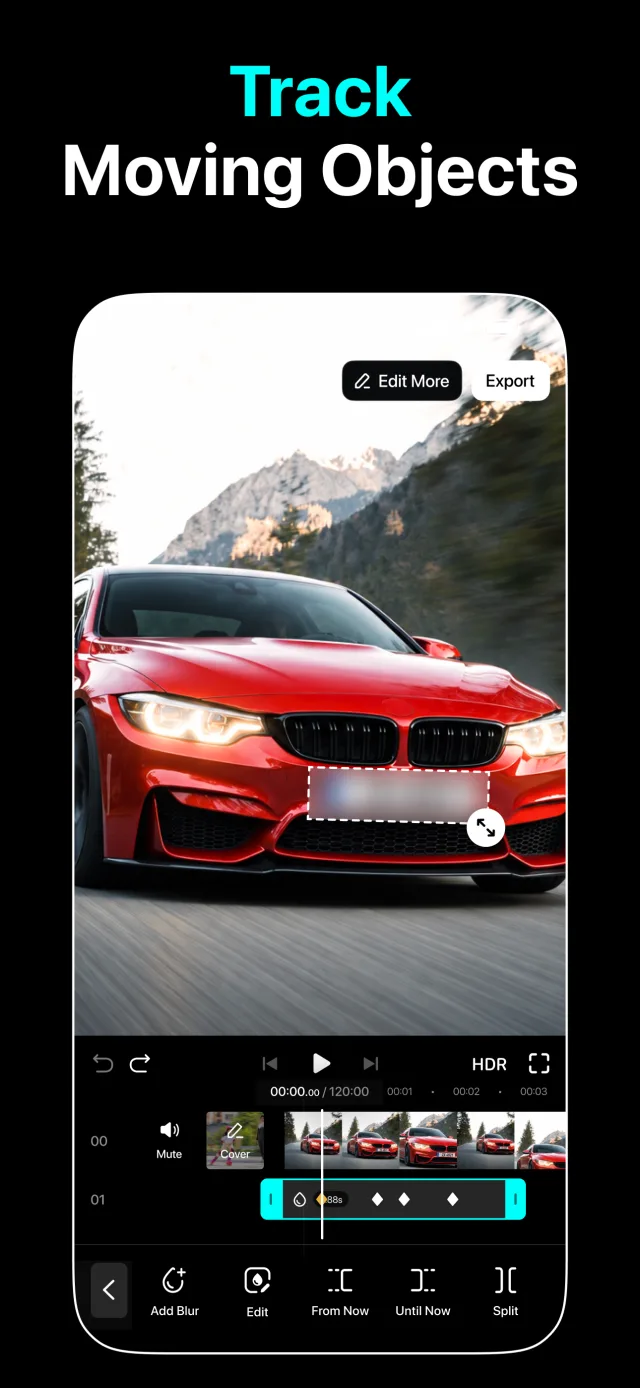
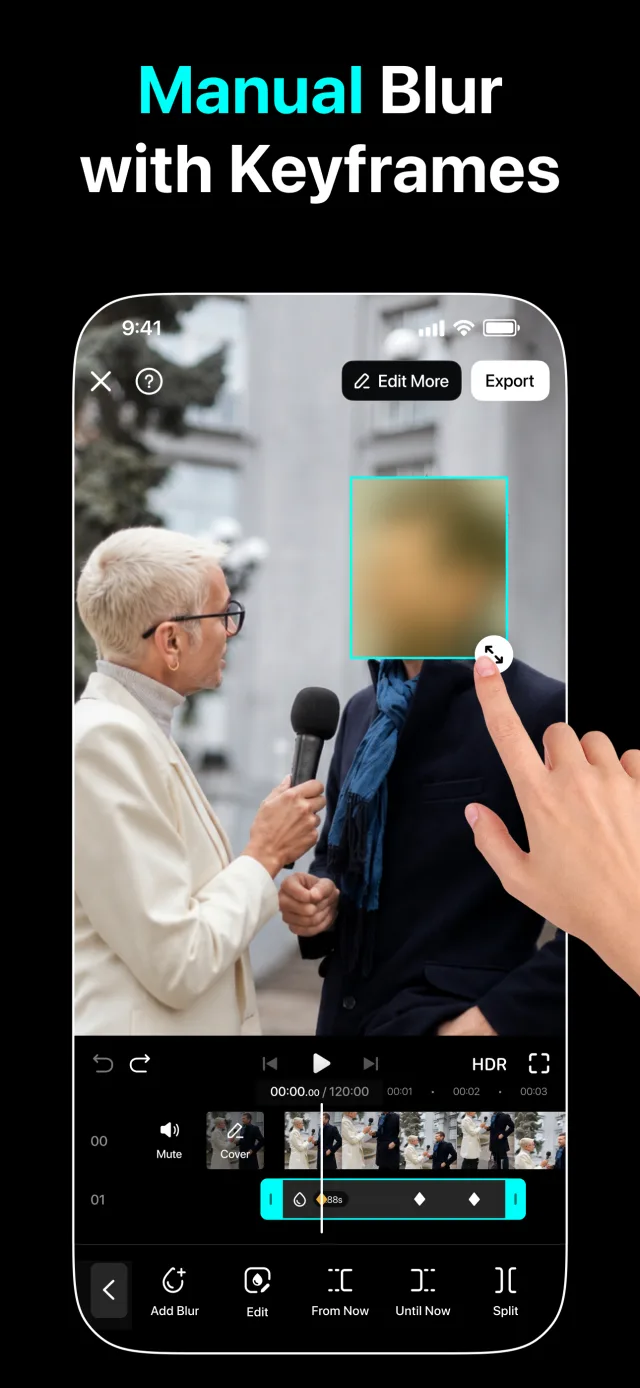
Each blur gets its own track with keyframes, so it stays on a face, a plate or a screen as it moves through the shot. Nudge it and a keyframe is added for you.
Detection, tracking and export all run on the device. There is no upload, no account, and it works with no signal at all.
The same screens you'll find in the app. Everything here runs on the phone.
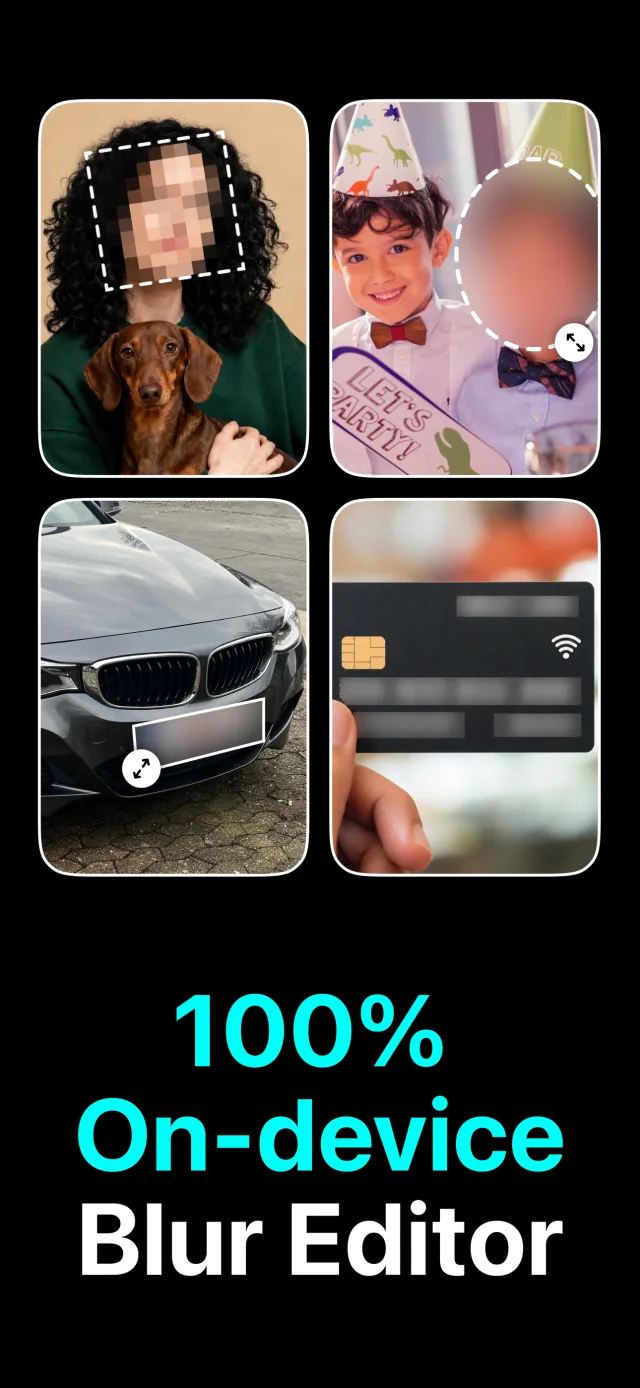
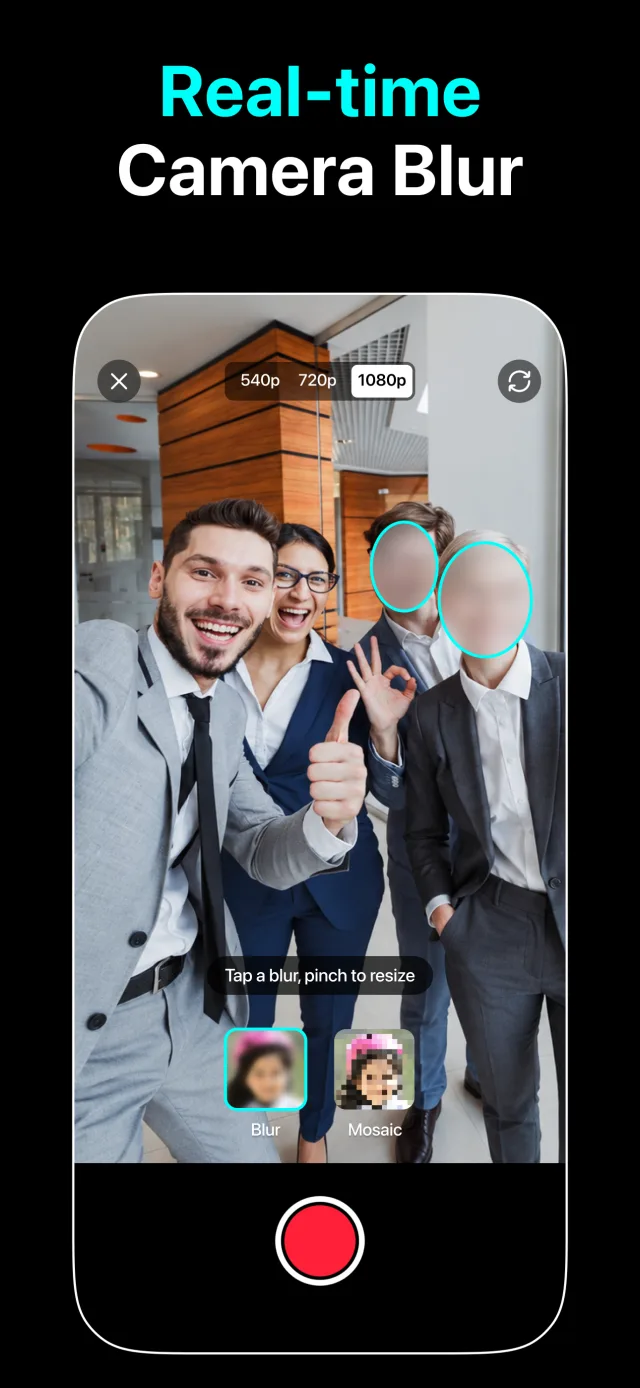
Pick one from your library, or record one with Camera Blur and faces are hidden live, in the preview and in the saved clip.
Every face gets its own blur. For anything else, draw a box over it and tap Track Object — the app follows it forward and backward through the clip.
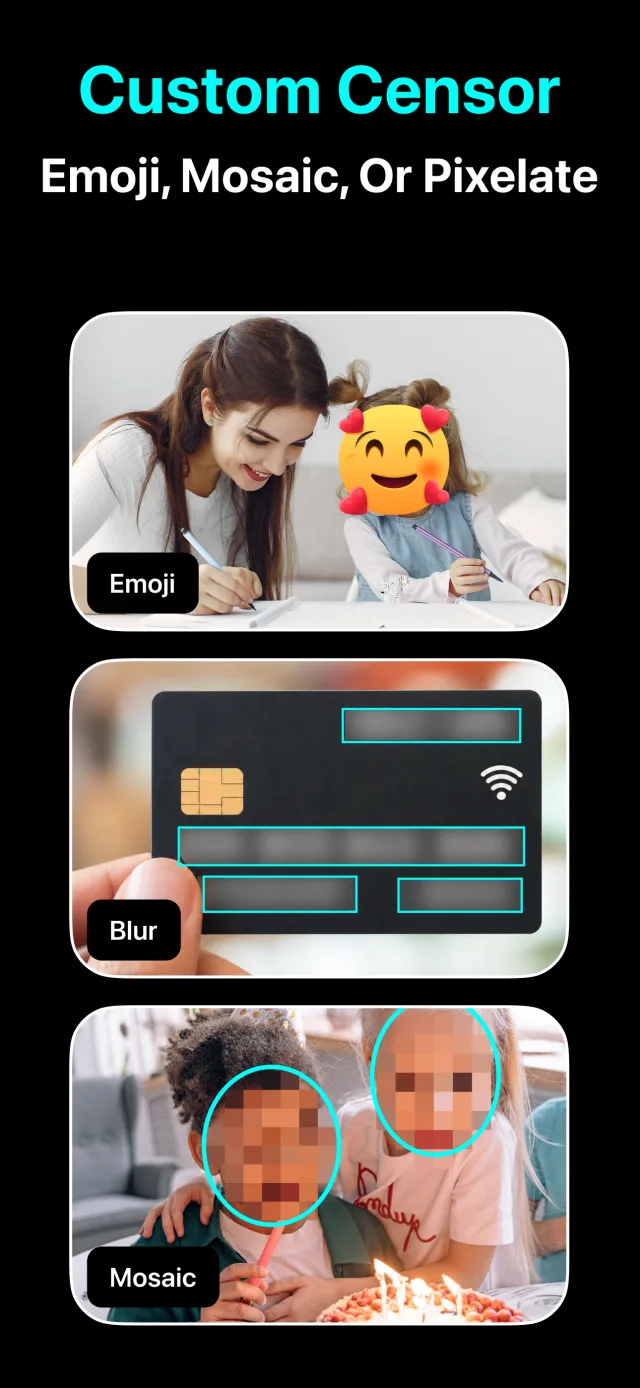
Blur, pixelate or mosaic, round or rectangular, and a slider for how strong. Scrub the timeline and nudge a blur if it drifts; keyframes are added for you.
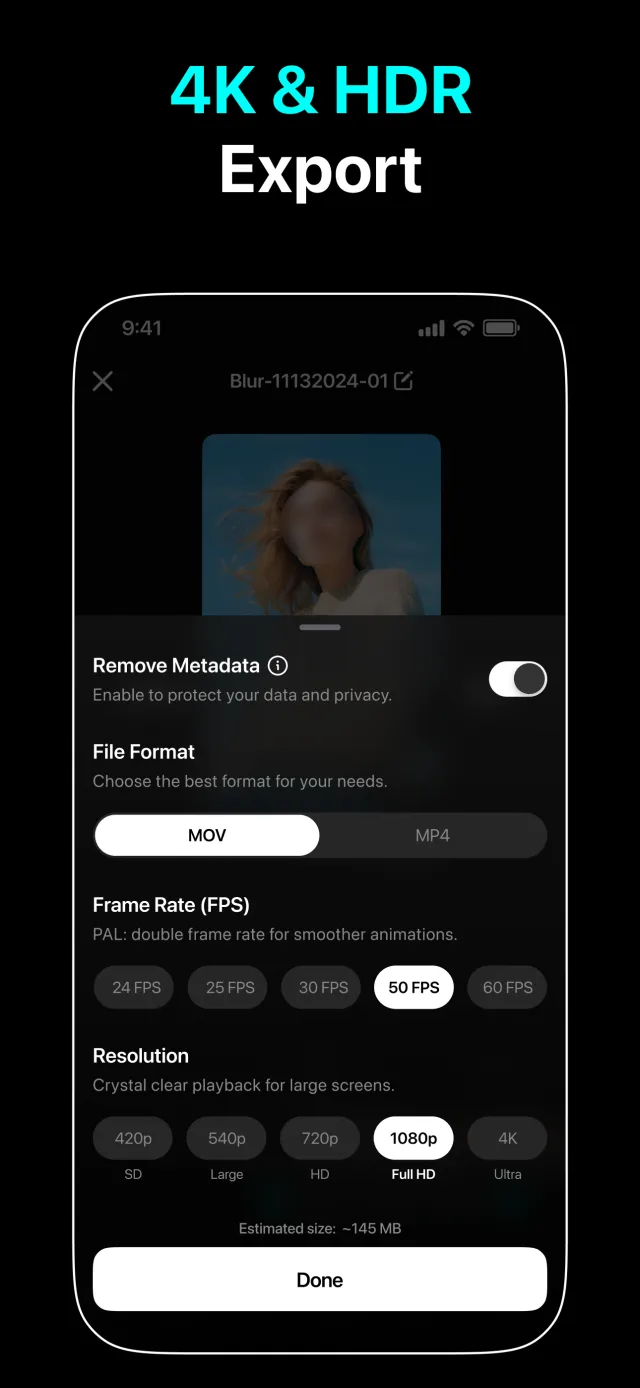
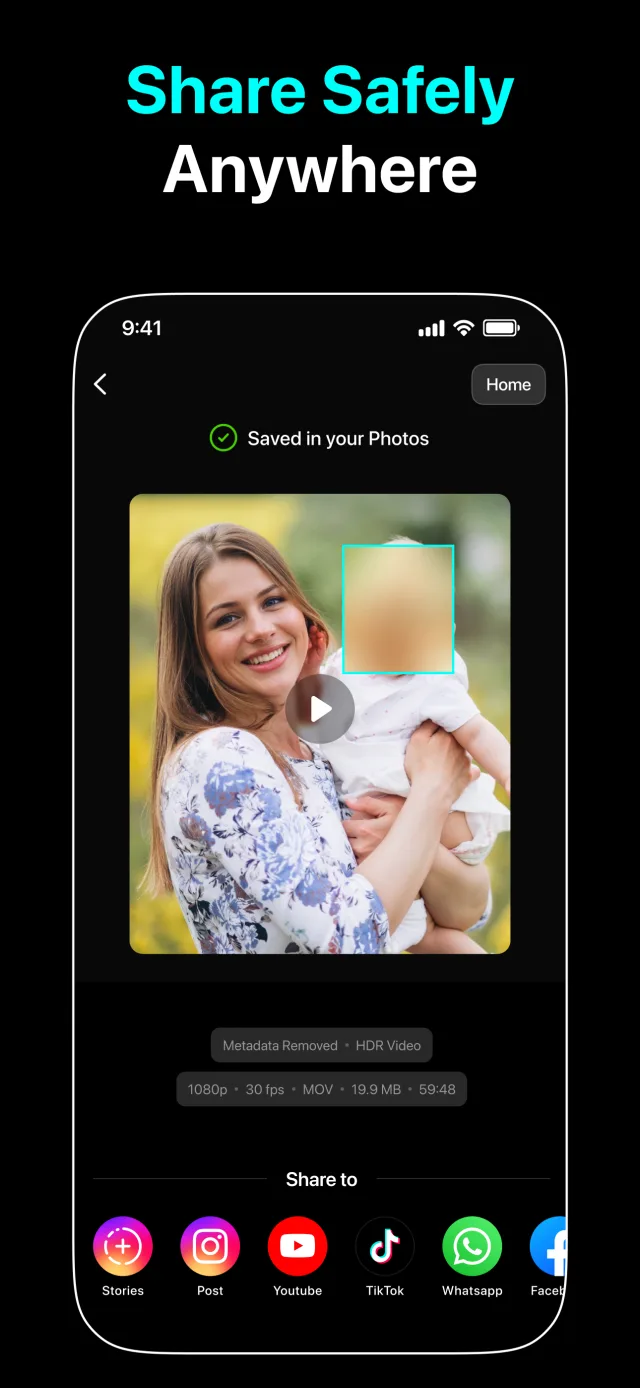
Up to 4K, MP4 or MOV, with the location and device metadata removed before you share it.
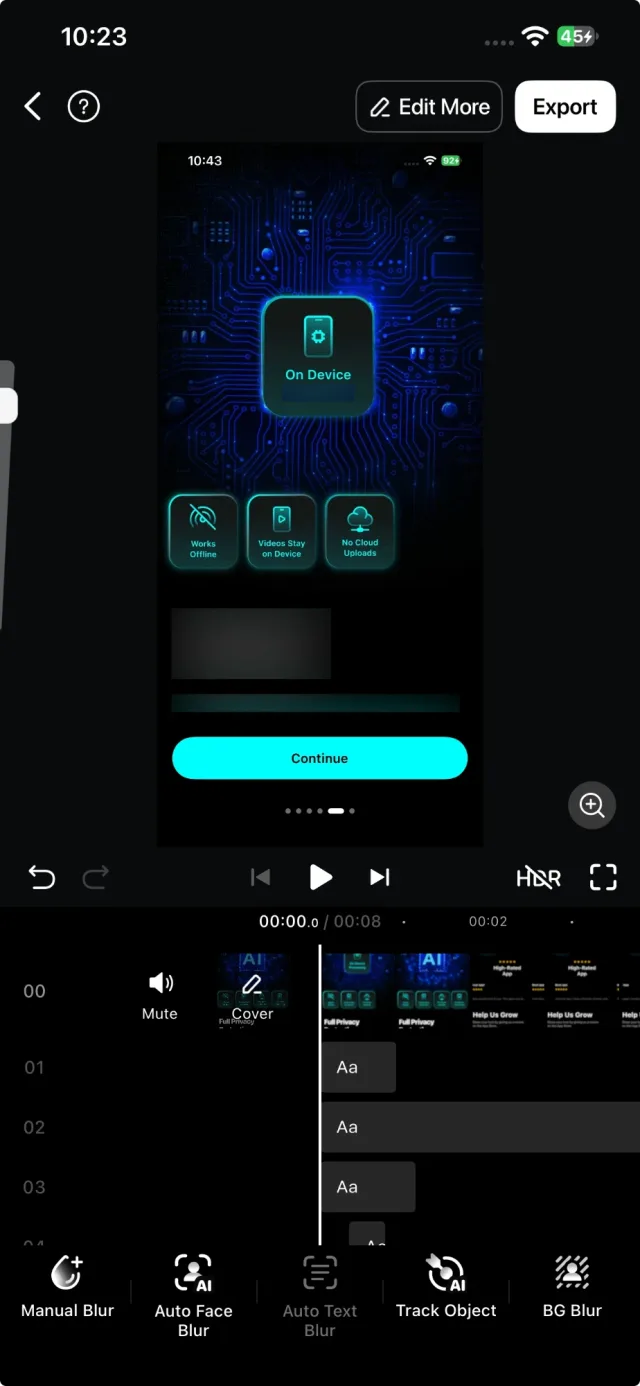
Auto Face Blur looks at every frame of the video, not just the first one, so faces that turn, walk in late or sit far in the background are covered too. Each face becomes its own row on the timeline: trim it, swap its style, or delete it if that person is fine being seen.
It runs with the phone's own Vision framework, so a one-minute clip takes seconds, not a queue on someone's server.
Try Auto Face Blur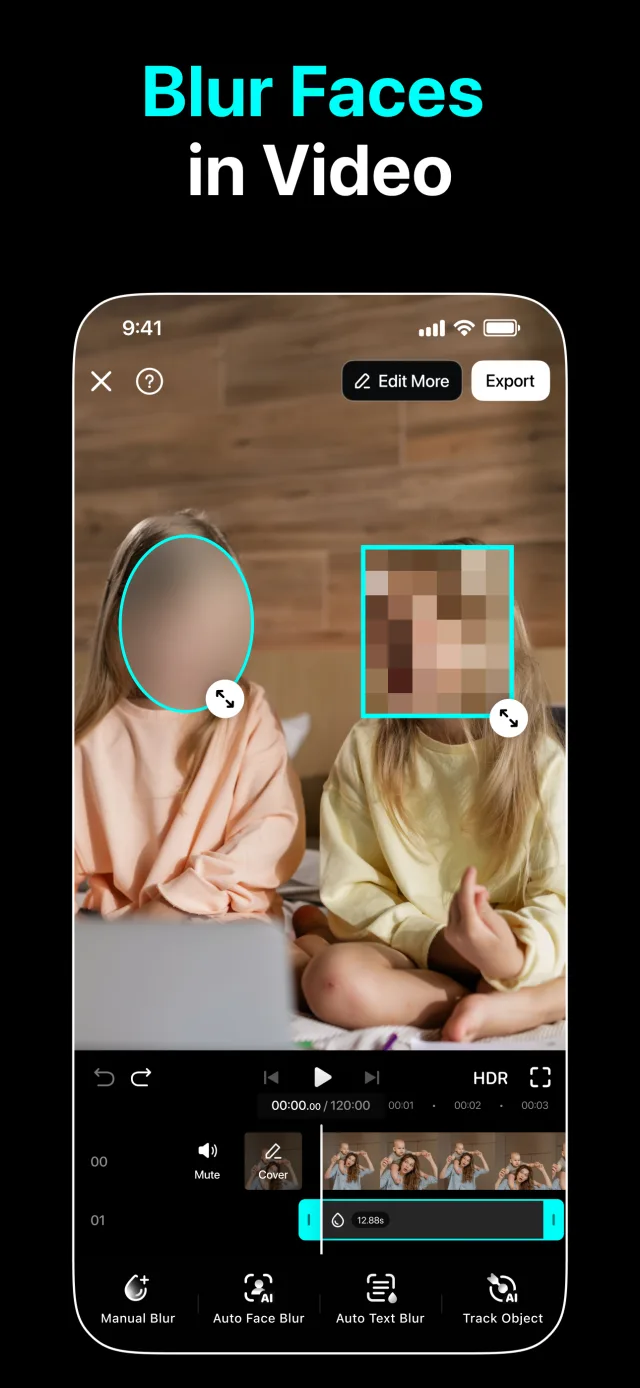
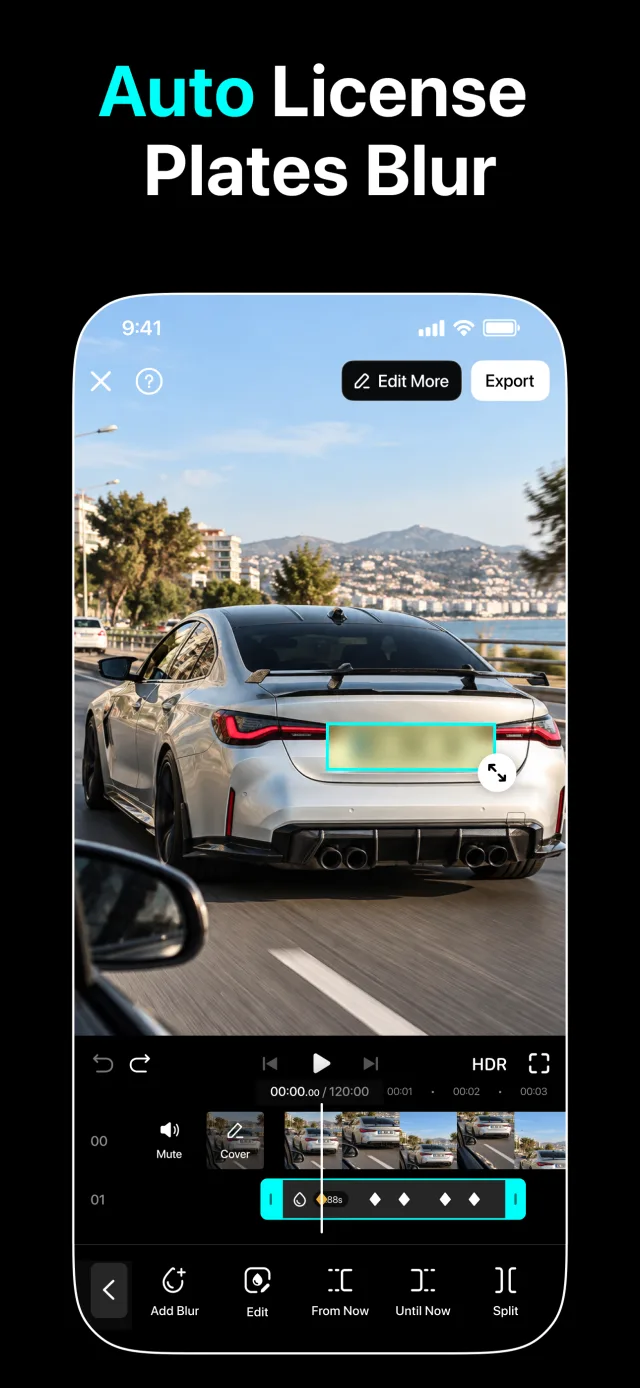
License plates are found for you, the same way faces are. For anything else, draw a box over it and tap Track Object: the app follows it through the rest of the clip and back to the start, so a laptop screen behind someone stays covered without you scrubbing frame by frame.
When a track drifts, drag the blur back into place. That adds a keyframe, and the blur eases between keyframes on its own.
Track an objectA soft Gaussian blur for a vlog, pixels for a news-style censor, a mosaic when you want it obvious that something was hidden. Round or rectangular, any size, with a slider for how strong, and the preview updates as you drag.
Prefer a sticker? Drop an emoji on a face instead of a blur.
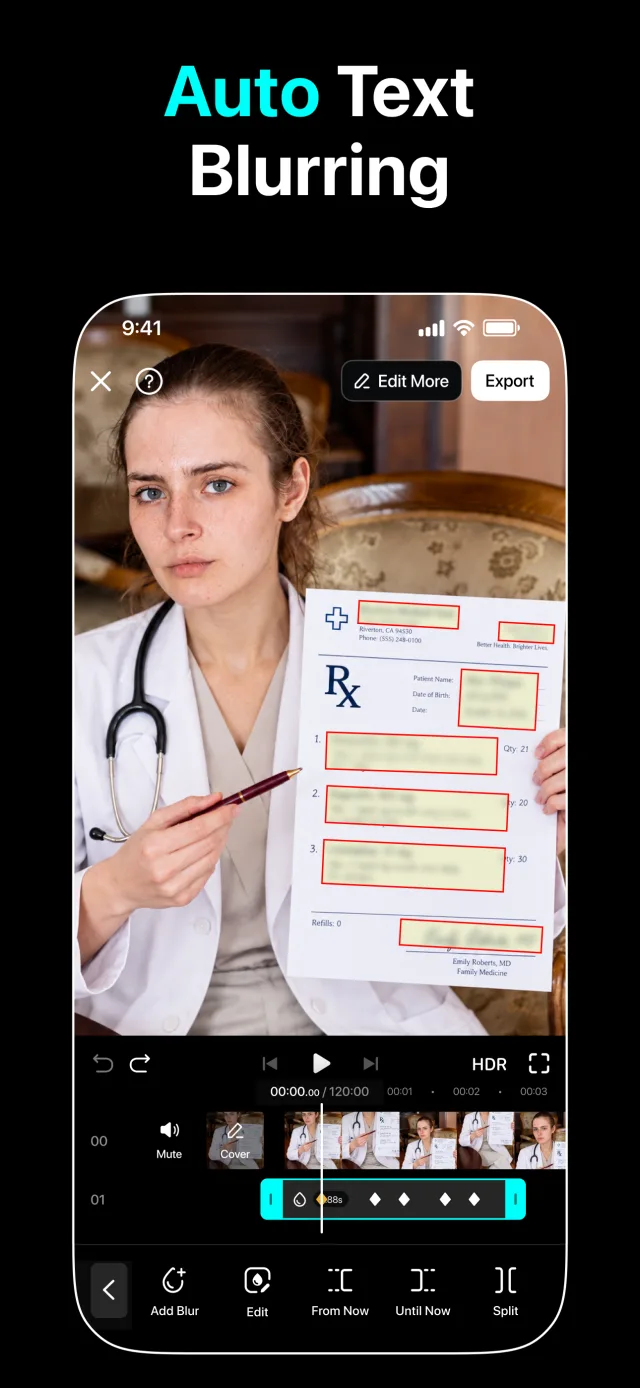
Pick a stylePosting a screen recording? Auto Text Blur reads every frame and finds the names, numbers, captions and signs in it. Each line gets its own blur track that follows it as the screen scrolls, and you can delete the ones that are fine to show.
Like everything else in the app, the text is read on your phone and never sent anywhere.
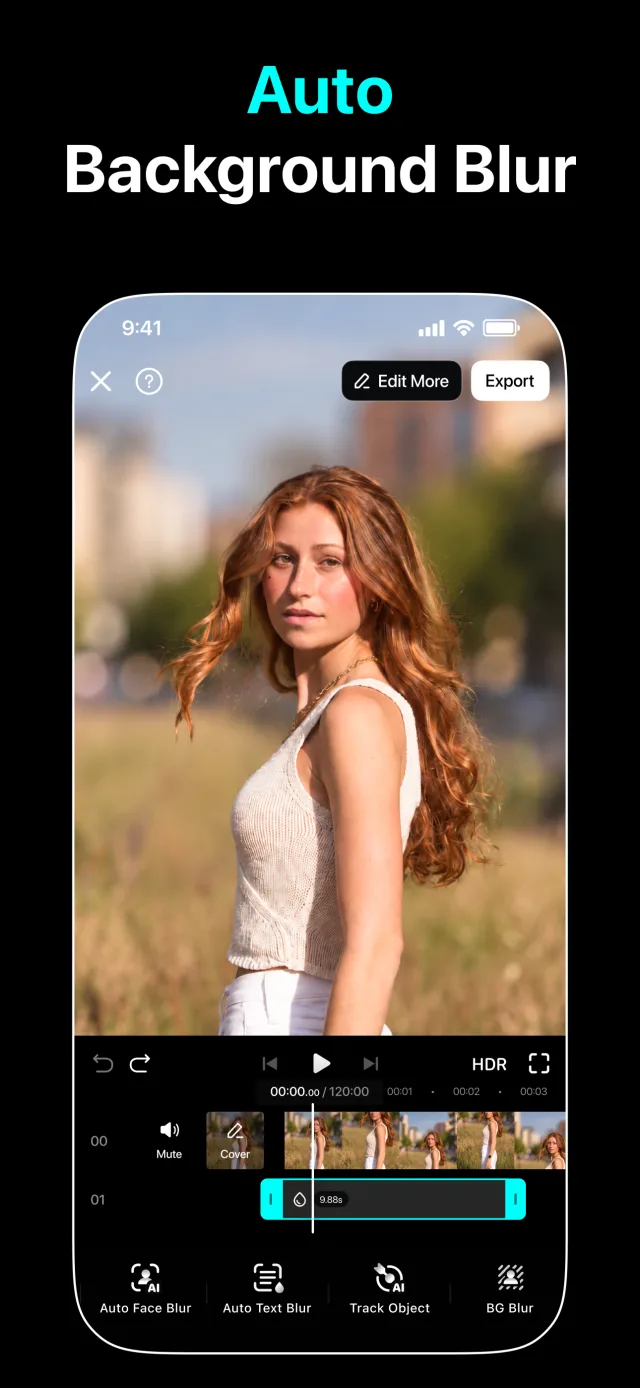
Blur the textBackground Blur separates the person from everything behind them and blurs or pixelates the rest, so a messy flat, a street or a classroom doesn't end up in the post.
Blur the backgroundA video file carries more than pictures: where it was shot, when, and on which phone. Blur Video strips that at export, and shows you what it removed. Export up to 4K, HDR if the source has it, as MP4 or MOV at the frame rate you choose.
Export cleanThe clip is fine. It's the people in it who didn't agree to be posted.
Open the video in Blur Video and tap Auto Face Blur. Every face gets a blur that follows it. To blur one face by hand instead, tap Manual Blur, drag the shape over the face, and the app tracks it from there.
Yes. Each blur is a track with keyframes, so it moves with the face through the clip. If it drifts, drag it back into place and a keyframe is added at that moment.
Anything you can draw a box over: license plates, phone and laptop screens, logos, documents, a whole person. Draw it, tap Track Object, and the app follows it. Auto Text Blur handles on-screen text by itself.
No. Face detection, tracking, text recognition and export all run on your iPhone. The app works offline, and there is no account to make. The only feature that talks to a server is the separate AI Video generator, which you choose to use.
Blur Video is free to download and use. Some tools and higher export options are part of Blur Video PRO, sold as a subscription or a one-time purchase inside the app. The prices are shown in the app for your region.
MP4 or MOV, from 480p up to 4K, with HDR when the source video is HDR, at 24 to 60 frames per second. Location and device metadata is removed at export.
iPhone on iOS 15 or later. It also installs on Macs with Apple silicon and on Apple Vision Pro from the App Store.